USB-C monitor or docking station? Test the setup before you buy
You want one cable for display, network and power. A monitor with the right ports can replace a separate dock. Check the exact laptop, monitor and cable, along with the number of displays the user needs.
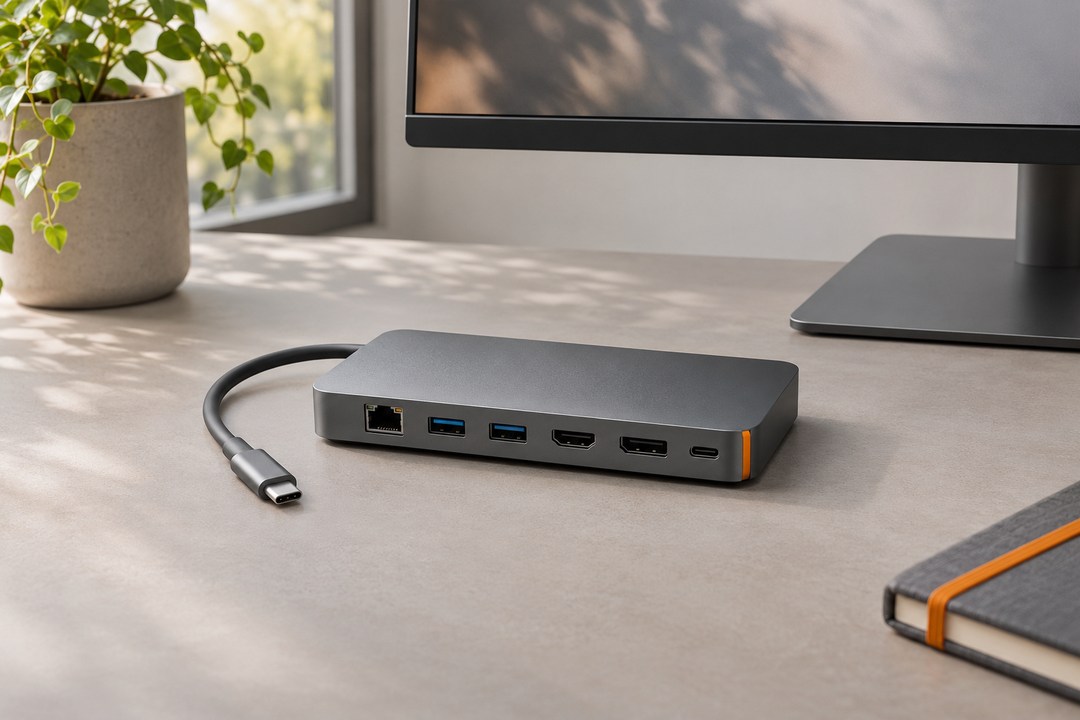
Specify the full configuration
List the laptop model and operating system, number of displays, resolution and refresh rate. Say whether the built-in display must remain active. “Supports two monitors” is too vague for a like-for-like quote.
What can the USB-C port actually do?
USB-C describes the connector. For DisplayPort Alt Mode, verify support on the laptop port, monitor and cable. Separately compare USB Power Delivery output with the laptop’s requirements. A monitor may display video correctly while supplying insufficient power under load.
Run a short workplace test
Set the target display modes, start a call and run a typical application. Disconnect the cable, put the laptop to sleep and reconnect it. Check that the extended desktop, USB audio and charging return during normal use.
Adding a second display
For daisy-chaining, the first display needs a suitable output and the entire path must support the configuration. Consult the manufacturer’s instructions for MST or Thunderbolt requirements. Record the cable, port and operating system tested.
What belongs in the specification or handover record?
| Item | Acceptance evidence |
|---|---|
| Video | Two independent desktops at the specified resolutions. |
| Power | Battery behaviour under normal load and reported power source. |
| Docking | Network, camera and audio work after reconnection. |
Example decision
Compare a monitor with an integrated hub against a lower-cost display plus a separate dock. The first may suit ordinary desks. The second may justify its cost for designers if it supports the extra screen and power requirements in testing. Price each profile separately.
Checklist
- The exact laptop, monitor and dock models are recorded.
- The quote includes suitable cables.
- The result applies to our operating system version.
Sources and documentation
Related solution
Review the scope and prepare your questions for an initial discussion.
Explore business hardware salesBefore you start a project

How to request comparable quotes for business laptops
Ask suppliers to price the same list of equipment and services.

How to test a laptop deployment with Windows Autopilot
Test registration, profile assignment and an employee’s first task before ordering a full batch.
Let’s talk about your IT.

IT systems integrator based in Łódź, Poland. Hardware, infrastructure and custom software for businesses.